
Write to a worksheet and format as an Excel table
Usage
writeDataTable(
  wb,
  sheet,
  x,
  startCol = 1,
  startRow = 1,
  xy = NULL,
  colNames = TRUE,
  rowNames = FALSE,
  tableStyle = openxlsx_getOp("tableStyle", "TableStyleLight9"),
  tableName = NULL,
  headerStyle = openxlsx_getOp("headerStyle"),
  withFilter = openxlsx_getOp("withFilter", TRUE),
  keepNA = openxlsx_getOp("keepNA", FALSE),
  na.string = openxlsx_getOp("na.string"),
  sep = ", ",
  stack = FALSE,
  firstColumn = openxlsx_getOp("firstColumn", FALSE),
  lastColumn = openxlsx_getOp("lastColumn", FALSE),
  bandedRows = openxlsx_getOp("bandedRows", TRUE),
  bandedCols = openxlsx_getOp("bandedCols", FALSE),
  col.names,
  row.names
)
Arguments
- wb
A Workbook object containing a worksheet.
- sheet
The worksheet to write to. Can be the worksheet index or name.
- x
A dataframe.
- startCol
A vector specifying the starting column to write df
- startRow
A vector specifying the starting row to write df
- xy
An alternative to specifying startCol and startRow individually. A vector of the form c(startCol, startRow)
- colNames
If
TRUE, column names of x are written.- rowNames
If
TRUE, row names of x are written.- tableStyle
Any excel table style name or "none" (see "formatting" vignette).
- tableName
name of table in workbook. The table name must be unique.
- headerStyle
Custom style to apply to column names.
- withFilter
If
TRUEorNA, columns with have filters in the first row.- keepNA
If
TRUE, NA values are converted to #N/A (orna.string, if not NULL) in Excel, else NA cells will be empty.- na.string
If not NULL, and if
keepNAisTRUE, NA values are converted to this string in Excel.- sep
Only applies to list columns. The separator used to collapse list columns to a character vector e.g. sapply(x$list_column, paste, collapse = sep).
- stack
If
TRUEthe new style is merged with any existing cell styles. If FALSE, any existing style is replaced by the new style.
The below options correspond to Excel table options: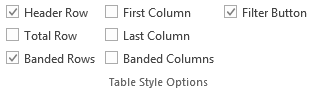
- firstColumn
logical. If TRUE, the first column is bold
- lastColumn
logical. If TRUE, the last column is bold
- bandedRows
logical. If TRUE, rows are colour banded
- bandedCols
logical. If TRUE, the columns are colour banded
- row.names, col.names
Deprecated, please use
rowNames,colNamesinstead
Details
columns of x with class Date/POSIXt, currency, accounting, hyperlink, percentage are automatically styled as dates, currency, accounting, hyperlinks, percentages respectively.
Examples
## see package vignettes for further examples.

#####################################################################################
## Create Workbook object and add worksheets
wb <- createWorkbook()
addWorksheet(wb, "S1")
addWorksheet(wb, "S2")
addWorksheet(wb, "S3")


#####################################################################################
## -- write data.frame as an Excel table with column filters
## -- default table style is "TableStyleMedium2"

writeDataTable(wb, "S1", x = iris)

writeDataTable(wb, "S2",
  x = mtcars, xy = c("B", 3), rowNames = TRUE,
  tableStyle = "TableStyleLight9"
)

df <- data.frame(
  "Date" = Sys.Date() - 0:19,
  "T" = TRUE, "F" = FALSE,
  "Time" = Sys.time() - 0:19 * 60 * 60,
  "Cash" = paste("$", 1:20), "Cash2" = 31:50,
  "hLink" = "https://CRAN.R-project.org/",
  "Percentage" = seq(0, 1, length.out = 20),
  "TinyNumbers" = runif(20) / 1E9, stringsAsFactors = FALSE
)

## openxlsx will apply default Excel styling for these classes
class(df$Cash) <- c(class(df$Cash), "currency")
class(df$Cash2) <- c(class(df$Cash2), "accounting")
class(df$hLink) <- "hyperlink"
class(df$Percentage) <- c(class(df$Percentage), "percentage")
class(df$TinyNumbers) <- c(class(df$TinyNumbers), "scientific")

writeDataTable(wb, "S3", x = df, startRow = 4, rowNames = TRUE, tableStyle = "TableStyleMedium9")

#####################################################################################
## Additional Header Styling and remove column filters

writeDataTable(wb,
  sheet = 1, x = iris, startCol = 7, headerStyle = createStyle(textRotation = 45),
  withFilter = FALSE
)


#####################################################################################
## Save workbook
## Open in excel without saving file: openXL(wb)
if (FALSE) { # \dontrun{
saveWorkbook(wb, "writeDataTableExample.xlsx", overwrite = TRUE)
} # }


#####################################################################################
## Pre-defined table styles gallery

wb <- createWorkbook(paste0("tableStylesGallery.xlsx"))
addWorksheet(wb, "Style Samples")
for (i in 1:21) {
  style <- paste0("TableStyleLight", i)
  writeDataTable(wb,
    x = data.frame(style), sheet = 1,
    tableStyle = style, startRow = 1, startCol = i * 3 - 2
  )
}

for (i in 1:28) {
  style <- paste0("TableStyleMedium", i)
  writeDataTable(wb,
    x = data.frame(style), sheet = 1,
    tableStyle = style, startRow = 4, startCol = i * 3 - 2
  )
}

for (i in 1:11) {
  style <- paste0("TableStyleDark", i)
  writeDataTable(wb,
    x = data.frame(style), sheet = 1,
    tableStyle = style, startRow = 7, startCol = i * 3 - 2
  )
}

## openXL(wb)
if (FALSE) { # \dontrun{
saveWorkbook(wb, file = "tableStylesGallery.xlsx", overwrite = TRUE)
} # }